How to optimize your simulation model. The GPP example.
Note
You may find the source code of the Gas Processing Plant here.
In this page, you will learn how to setup the python script where the black box optimization will be executed. To prove the concept, only a few optimizers have been selected: scikit-optimize, optuna, hyperopt and bayesian optimization.
Note
You may use other black box optimization packages of your choice. The exact setup for each will depend on its requirements.
In summary, in any optimization experiment that you build using ALPypeOpt, you should be:
Creating an AnyLogicModel connection instance.
Create the variable ranges and wrap your simulation environment within a function.
Create an AnyLogicModel connection instance
This step is quite straight forward and can be generalized for any problem type. You must simply create an instance of AnyLogicModel and define the parameters as desired. There are two main considerations:
If the user wants to run the simulation model from AnyLogic directly, then you must set the parameter
'run_exported_model': Falsein theenv_configdictionary parameter.If the user wants to run an exported model, then the following parameters must be specified:
'run_exported_model': True: Enable exported model.'exported_model_loc'(e.g.'./resources/exported_models/gas_processing_plant'): Specify the location of the exported model.'show_terminals': True: In case the user wants the terminal/console for each model to be launched in an individual window. Otherwise, all of them will be stacked under the same console where the python script was executed.'verbose'(TrueorFalse): Set toTruein case debug level is required.
The looks of the connection instance in python is as follows, assuming the Gas Processing Plant example:
from alpypeopt import AnyLogicModel

# [...]
gpp_model = AnyLogicModel(
    env_config={
        'run_exported_model': False,
        'exported_model_loc': './resources/exported_models/gas_processing_plant',
        'show_terminals': True,
        'verbose': False
    }
)
# [...]
Create variable ranges and wrap your simulation environment within a function
When working on any optimization model, it is crucial to identify two fundamental components. This requirement is not exclusive to ALPypeOpt but common to all optimization scenarios:
Specify the variable ranges.
Define the function to optimize.
While the syntax may vary between packages, the core concept remains similar.
We will illustrate the process using the optimization script provided in the optimization_skopt.py file.
Initially, you must determine the objective function that needs optimization, and identify the variables that significantly influence this function.
Consider the Gas Processing Plant example where the primary goal is to maximize the total revenue. The total revenue is the sum of the total production from 2 products, each multiplied by its corresponding value. The value (or price) of each product is predefined at the start of the process and remains constant throughout.
Remember that a class GPPSetup exists on the AnyLogic side to store all model configuration related information. Here, the user specifies the prices of the products using the setProductPrices method. However, you must first create an instance of this class:
Important
To instantiate a class defined on the AnyLogic side, use the structure <anylogic-model-python-name>.get_jvm().<java-model-package>.<custom-class>. In the Gas Processing Plant example, it appears as gpp_model.get_jvm().gasprocessingplant.GPPSetup().
You can locate your java-model-package name in the Advanced section of your project properties. This name is editable and typically set when creating a new project.
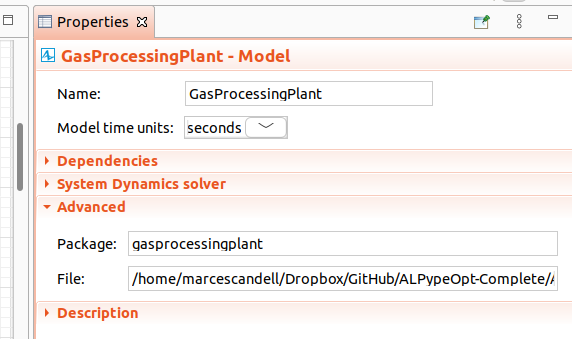
After creating an instance of your custom GPPSetup class, you can begin assigning values to it. As previously mentioned, the initial parameter to set is the prices of product 1 and 2.
# Initialize model setup
gpp_setup = gpp_model.get_jvm().gasprocessingplant.GPPSetup()
# Start setting up gas product prices
gpp_setup.setProductPrices(30.0, 10.0)
Once you have defined the objective function, proceed to identify the variables that influence this function. In this case, the price is fixed (and hence cannot be a variable). The only variables are product production rates, which are influenced by three parameters:
Flow allocation fraction (0 - 100%) to deC1 (distillation column) which can be set via
setFlowAllocRateToDec1.deC1 temperature which can be set via
setDecTemperaturesfor both deC’s.deC2 temperature.
After identifying the variables, create the range of possible values. With scikit-optimize, this can be achieved by simply defining a tuple of (min, max).
# Create input variable ratios as (min, max)
# GPU 1&2 plant load ratios
plant_load_ratio = (0.01, 0.99)
# GPU 1&2 distillation column operating temperature
gpp_opp_temp_ratio = (20.0, 100.0)
# Compile all bounds in single array
bounds = [
    plant_load_ratio,       # dec1 flow allocation
    gpp_opp_temp_ratio,     # dec1 temperature
    gpp_opp_temp_ratio      # dec2 temperature
]
The next step is to define the objective function. Generally, it is written as f(x1, x2, …), where we aim to either maximize or minimize this function. In our case, such function is the simulation which is expected to return a single value or total revenue. To achieve this, we need to encapsulate the model in a single function and define how the variables, which will vary with each iteration, are consumed.
# Encapsulate simulation model as a python function
def simulation(x, reset=True):
    # Setup selected plant loads and temperatures
    gpp_setup.setFlowAllocRateToDec1(x[0])
    gpp_setup.setDecTemperatures(x[1], x[2])
    # Pass input setup and run model until end
    gpp_model.setup_and_run(gpp_setup)
    # Extract model output or simulation result
    model_output = gpp_model.get_model_output()
    if reset:
        # Reset simulation model to be ready for next iteration
        gpp_model.reset()
    # Return simulation value. 'skopt' package only allows minimization problems
    # Because of that, value must be negated
    return -model_output.getTotalRevenue()
Two things must be noted from the script shared above. First, after consuming the variables in x the model is ready to be executed. To do so, you must call gpp_model.setup_and_run(gpp_setup). This will trigger the simulation model to run until the end. Once the run is completed you can proceed with the second step. The function must return a value. For the case in hand, that value is the total revenue which can be acquired by calling model_output = gpp_model.get_model_output() and then model_output.getTotalRevenue().
Note
Note that the
model_output.getTotalRevenue()has been negated. This is only necessary for this use case as the optimizer used, scikit-optimize is set to minimization by default, but we are looking for a maximization of the revenue.
An additional step is the reset function. This is necessary to prepare the simulation model to accept any new configuration. The reason why an if-statement has been placed in between is to enable or disable such functionality (for example when displaying the final result).
Finally, the optimizer can be set and executed. Depending on the solver, other parameters might be available.
# Setup and execute black box optimmization model
res = gp_minimize(simulation,         # the function to minimize
                  bounds,             # the bounds on each dimension of x
                  acq_func="EI",      # the acquisition function
                  n_calls=10,         # the number of evaluations of simulation
                  n_random_starts=5,  # the number of random initialization points
                  random_state=1234)  # the random seed

# Print optimal solution
print(f"Solution is {res.x} for a value of {-res.fun}")
Tip
If you want the AnyLogic model window to display the optimal value, you can evaluate the simulation on it. Just note that you must avoid calling
gpp_model.reset().# Run simulation with optimal result to use UI to explore results in AnyLogic simulation(res.x, reset=False)
Important note on AnyLogic console error
Note
Due to calling reset() internally when the AnyLogicModel instance is being created, for the Gas Processing Plant example, you will be constantly receving the following error:
Exception during stopping the engine:
INTERNAL ERROR(S):
Engine still has 11 events scheduled: 0.0:  root.fluidMerge2.initializationEvent

java.lang.RuntimeException: INTERNAL ERROR(S):
Engine still has 11 events scheduled: 0.0:  root.fluidMerge2.initializationEvent

    at com.anylogic.engine.Engine.e(Unknown Source)
    at com.anylogic.engine.Engine.stop(Unknown Source)
    at com.alpypeopt.RLJavaControllerImpl.reset(RLJavaControllerImpl.java:149)
    at java.base/jdk.internal.reflect.NativeMethodAccessorImpl.invoke0(Native Method)
    at java.base/jdk.internal.reflect.NativeMethodAccessorImpl.invoke(NativeMethodAccessorImpl.java:62)
    at java.base/jdk.internal.reflect.DelegatingMethodAccessorImpl.invoke(DelegatingMethodAccessorImpl.java:43)
    at java.base/java.lang.reflect.Method.invoke(Method.java:566)
    at py4j.reflection.MethodInvoker.invoke(MethodInvoker.java:244)
    at py4j.reflection.ReflectionEngine.invoke(ReflectionEngine.java:357)
    at py4j.Gateway.invoke(Gateway.java:282)
    at py4j.commands.AbstractCommand.invokeMethod(AbstractCommand.java:132)
    at py4j.commands.CallCommand.execute(CallCommand.java:79)
    at py4j.ClientServerConnection.waitForCommands(ClientServerConnection.java:182)
    at py4j.ClientServerConnection.run(ClientServerConnection.java:106)
    at java.base/java.lang.Thread.run(Thread.java:834)
For this particular case, this is expected as the simulation seems to be killed ungracefully. It might potentially happen if your model uses the Fluid Library. It should not have any impact.
Just ignore it.