The AnyLogic Connector
This page will guide you through the process of setting up your connection from the AnyLogic side. To help make the explanation more clear, we will be using the Gas Processing Plant example.
Note
You may find the source code of the Gas Processing Plant here.
The summary of steps required to follow are:
Add ALPypeOpt Connector Library to your AnyLogic Palette.
Drag and drop an instance of ALPypeOptConnector to your root (also defaulted as
Mainthe first time you create a model).Add
ALPypeOptClientControllerinterface to the list of interfaces in your root agent and implement the required functions.
Add ALPypeOptConnector library to your AnyLogic Palette
To begin, you must add the ALPypeOpt Connector Library to your AnyLogic Palette. If you are not familiar with AnyLogic, this step is quite straightforward. You simply need to locate the green cross at the end of the Palette screen (the location of the Palette may vary based on your AnyLogic view arrangement, but it is usually presented on the left-hand side together with the Projects structure).

Once you have located the green cross, click on it and select Manage Libraries…. Then, click on the Add button and select the ALPypeLibrary.jar file. Note that this is a link to download a library that was generated and is only compatible with AnyLogic 8.8.x. There is also a link ALPypeLibrary.jar to the library compatible with AnyLogic 8.7.x.

You should now be able to see the newely added library in your list of available libraries at the Palette.
Drag and drop an instance of ALPypeOptConnector
Now that you have access to the ALPypeOpt Connector from AnyLogic, you can proceed by dragging and dropping an instance of it into your model.
Warning
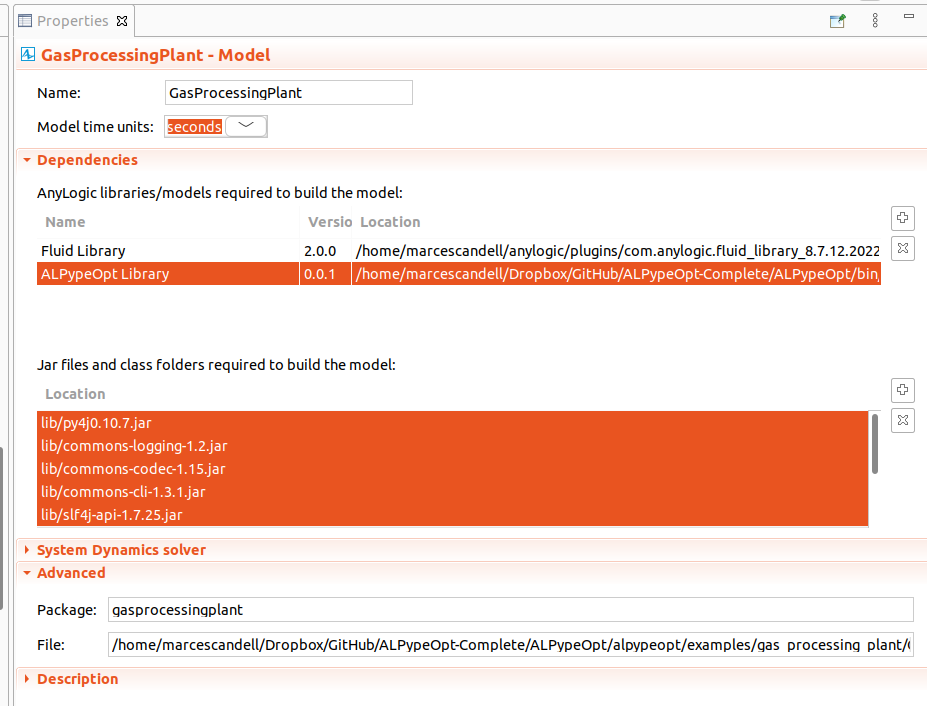
Please note that when creating a custom library in AnyLogic, the additional required dependencies are not included in the package by default. While that remains a problem, you will need to include them manually.
You can download them here.
Just click your project on the Projects tab and go to Properties. There you can add other dependencies manually at Jar files and class folders required to build the model as shown in the image:
It’s important to note that you should place the connector in your root agent. If you’re not familiar with AnyLogic, the root agent is the one that usually holds and compiles the other objects in your simulation (it’s like the home for everything else).
Tip
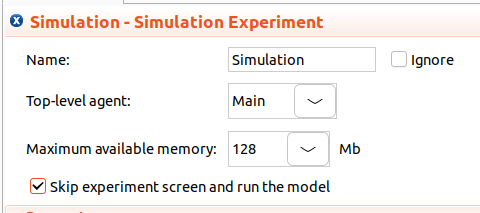
Another reference you can use to identify the root agent, it’s the one that you select when you set up your Simulation experiment as the Top-level agent. See the image below:
Implement ALPypeOptClientController
This is a very important step in order for the ALPypeOpt Connector to understand what it needs to do when the optimization python script is executed.
First, you must add ALPypeOptClientConnector to the list of interfaces of your root agent. To do this, first click on a random point in the canvas of your root agent (usually named as Main) and then navigate to the Properties page. Scroll down to find the section Advanced Java. You should be able to see Implements (comma-separated list of interfaces). Then you can add ALPypeOptClientController.

Next, if you try to compile your model, you will be getting at least 2 new errors as shown in the image:

These errors indicate that, if you plan to implement the interface, you must also implement these functions (it’s kind of a contract that you have decided to sign).
You can now drag and drop 2 new functions. Their arguments and return types must be as follows (otherwise the compilation error won’t go away):

boolean setupAndRun(Object modelConfig): This function is called by the optimization algorithm so the AnyLogic model (or simulation) consumes the values (that come from the python black box optimizer) and subsequently runs until the end (whichever simulation lenght has been defined). The argument of the function is of a generic typeObjectso any custom class defined by the consumer (AnyLogic model) can be passed.In the Gas Processing Plant example, a tailored-to-the problem class has been created:
GPPSetup. This class contains functionalities to help set and manage data related to the specific problem of a GPP. For example, there are methods available such assetFlowAllocRateToDec1(double flowAllocFractionToDec1)andsetDecTemperatures(double dec1Temperature, double dec2Temperature). However, to be able to access such methods, themodelConfigargument must be parsed to the right type. In order for such parsing to work, additional configuration must be implemented and followed on the python side. The works of it will be explained later. Here’s the AnyLogic function body (as an example):try { // Parse object input into custom model input setup GPPSetup gppSetup = (GPPSetup) modelConfig; // Store settings in model parameter this.gppSetup = gppSetup; // Process configuration: // Allocate flow fraction and distillation columns fractions flowAllocation.set_fraction1(gppSetup.getFlowAllocFractionToDec1()); flowAllocation.set_fraction2(1 - gppSetup.getFlowAllocFractionToDec1()); dec1.set_temperature(gppSetup.getTemperatureDeC1()); dec2.set_temperature(gppSetup.getTemperatureDeC2()); // Everything went fine! return true; } catch (Exception e) { error("Something went wrong when processing model input. Error catched was: " + e.getMessage()); } return false;
Object getModelOutput(): This function returns an object containing information about the output of the model. Just as before, the return type is of a generic typeObjectwhich allows any custom created class to be passed.In the Gas Processing Plant example, a custom class
ModelOutputhas been created. In this class, you can find methods such asdouble getTotalRevenue()ordouble getProduction1(). Such methods will be then called from the python script.The function body is pretty simple:
// Collect model output and return
ModelOutput modelOutput = new ModelOutput(this);

return modelOutput;
which is constructed as follows:
// [...]

/**
* Default constructor
*/
public ModelOutput(Main gppModel) {
    this.gppSetup = (GPPSetup) gppModel.alPypeOptConnector.getModelConfig();
    this.gppModel = gppModel;
    // Compute model margin
    totalRevenue = gppModel.totalProduct1.amountPassed() * gppSetup.getProduct1Price()
                + gppModel.totalProduct2.amountPassed() * gppSetup.getProduct2Price();

}

// [...]